Showing posts with label Google. Show all posts

Monday, October 17, 2011

Read answers from Experts Exchange for Free- Trick

 Have you ever searched google and stumbled into the pages of Experts Exchange? Uff! the I've seen this page so many times to and it really irritates. I found it using Google and Google is there to rescue too.

Can't stand viewing this page?
 When you see a Experts Exchange page on the search list, don't click the direct link to the page. It will just lead you to the above image page. Instead check for cached link below it's link and definition.
Click the "Cached", thats where you get the Answers.
Ops! you still see the Subscribe Now Image? Don't worry, just scroll down a bit... TAADA! Answers! Awesome!.
Try it now, works Great.
Update  21 oct 2011:
Hmm... it seems that you can view the answers on expert exchange by viewing the link bordered with red too(above image). It may not work in all cases though.

Tuesday, September 13, 2011

Convert your documents (pdf, doc, txt and more) to your Language

Google docs is a great application, you already know that. There are numerous features available on Google Docs. For starters if you haven't noticed the small 'Translate Document' from the 'Tools' menu, this is the right place to know. You can translate files like pdf, doc, txt, html, xls, docx.

You can translate you documents in two ways :
1. Google Translate
The link translate a document can translate you documents fast and easy.

2. Google Docs
So there is Google translate to translate your documents but why use Google Docs? If you just want to translate you document then Google Translate will suffice, but with google docs you can edit your documents. The ability to edit pdf files is the most exciting because there aren't much of free and easy to use pdf editors out there. To edit your pdf files you first need to upload them and convert them to google docs. You can do it as
Select a pdf file to convert  > Actions > Made a google docs copy. 

After you have made a copy then click on it. You will be taken to editing mode for that document. From the page in menus >Tools>Translate document. Then choose your language to translate the document into.
You can create a copy of the translated document, download to you computer.


Thursday, September 16, 2010

The Chrome Tools you need

With more and more users switching to Google Chrome, Google’s open source answer to Mozilla Firefox, we have decided to feature some cool Chrome extensions this week to help you improve your browsing experience and save yourself some time in the process.

Adblock

Get rid of those flashy banner ads! These bandwidth suckers not only distract you but also make pages load slowly. Like Firefox’s Adblock plus, this Chrome extension is a perfect tool to block just about any annoying ad.

goo.gl URL Shortener

This extension shortens any long URLs with the Google’s new URL Shortener service. Once shortened the URL is then copied automatically to clipboard and can be shared with any supported services like Twitter and IMs where there are character limits.

Shareaholic

If you’re one of us who have to constantly sharing web pages over social networking sites then this extension is a must-have tool. It lets you share any web page on almost any social networking site and aggregators right from the website you are on.

IE Tab

Not all websites are compatible with Chrome, and some bummers force you to open IE. This extension solves this problem for once and for all by emulating Internet Explorer within the Chrome browser.

GMail Checker Plus


This amazing extension lets you manage, preview and delete emails without logging into your account on another tab. It also comes with sound notification service for new mail and also allows you to view the new Priority Inbox right from the current tab.

StayFocusd

Addicted to Facebook? This extension helps you focus while you work by blocking time wasting websites. It sets a timer for time-consuming websites you often tend to visit and then blocks them for the rest of the day when the time is up.

Google Translate

It gets quite frustrating when some websites link you to some other sites with information in some obscure language. For such occasions, this extension works its wonder by translating any webpage into any language supported by Google translate service.

Split Screen

Amazing for cross-reference study, this extension splits the screen and allows user to open multiple websites in a single tab. It is great extension for studying as it effortlessly enables the user to compare and contrast between different websites at same time.

Google Dictionary

With this extension, you can double click any word and the definition immediately pops on the screen. Alternatively, you can directly search meanings for the words by clicking the icon on the top right of the screen.

Chromey Calculator

This extension brings all the handy calculator tricks right at your fingertips. When Google fails to answer, it seeks help from the WolframAlpha computational engine. This extension also handles mixed unit calculations (like 300 inch+500 light years) with ease.

Monday, January 25, 2010

The Add-ons Eco system on Firefox - Fourth

Customize Google
https://addons.mozilla.org/en-US/firefox/addon/743
http://www.customizegoogle.com/
Searching had been never so easy without google and now this Addon 'Customize Google'makes it even better. 'Customize Google' lets you customize many features of Google Search. It lets to block the Google ads in almost any Google Page also including Gmail(I loved this one). It remaps Google Images search results to point directly at the images (no longer will you need to click through the originating site). Customize Google lets you add links from other search engines directly into your search results. It can also block Google click tracking and allows you to connect to Google Calendar and Gmail securely (https).

Gspace
https://addons.mozilla.org/firefox/1593/
Have you tried the Microsoft's SkyDrive? Here's the one from on your Gmail to store your files(although there is Gdrive on the line). This is not provided by Google but is provided by third party as an add-on and connects to Gmail drive as a new network share on "user's network station".

Gspace is a content management extension that lets you turn your Gmail account into an online mass storage device. Gspace integrates nicely into your browser and lets you drag and drop files into Gmail for backup or storage purposes without interrupting your work flow. If you use Gspace, I recommend adding a tag in Gmail to your files so they can be filtered and accessed quickly. The following is the description of Gspace from its homepage: “Gspace turns the 2GB of your Gmail account into free online storage. With Gspace you can manage unlimited Gmail accounts to store all type of files within its simple, user friendly interface. Listen to your favorite stored music directly from your Gspace, view your collections of pictures and manage your Gdrive files as well. Download Gspace now and transfer files between your computer and Gspace at anytime, from everywhere!”

Similar Posts.
http://likeweb.blogspot.com/2010/01/add-ons-eco-system-on-firefox.html
http://likeweb.blogspot.com/2010/01/add-ons-eco-system-on-firefox-second.html
http://likeweb.blogspot.com/2010/01/add-ons-eco-system-on-firefox-third.html
http://likeweb.blogspot.com/2010/01/add-ons-eco-system-on-firefox-fourth.html

Saturday, August 8, 2009

Things that you didn't know about Gmail

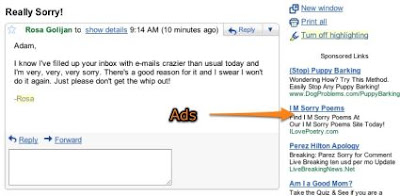
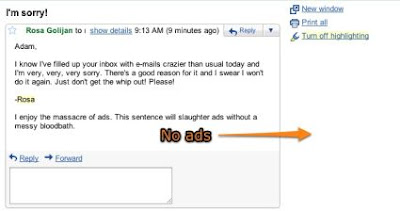
With just two simple sentences at the end of an email, you can now eliminate the ‘Sponsored Links’ that show up on the side of an email in your inbox.

The sentences were based on the logic laid forth by blogger Joe McKay, who wrote in a blog post on his site that all you need to do is mention catastrophes or tragedies in your mail for Gmail to not put up ads.

“Google does not use humans to read your email, only computers. These computers search for keywords that trigger the advertisements, however, if they happen to find a catastrophic event or tragedy Google errs on the side of good taste and removes the ads altogether,” McKay wrote.

While McKay’s suggestions were a bit too offensive, the guys at Lifehacker came up with their own phrases that were ‘safe’ to send to anyone.

So all you need to do is add these two sentences at the end of an email: “I enjoy the massacre of ads. This sentence will slaughter ads without a messy bloodbath.”

Before
After

“Those two simple (and innocent) sentences at the end of an e-mail appear to consistently block Gmail's sponsored ads for us. We've tested e-mails of varying lengths because Joe remarked that he found that there needs to be a ratio of one ad-blocking word for every 167 normal words, but so far, we haven't seen those sentences fail,” Lifehacker wrote.

HOW TO DISABLE THE SPONSORED LINKS BAR
McKay also notes how to disable the bar at the top of your inbox, which displays sponsored links. A lot of our tech-savvy readers might already know this one, but the Sponsored Links bar can be turned off simply through the Gmail settings itself.

Go to your settings page, click on ‘Web Clips’ and uncheck the box for “Show my web clips above the Inbox”.

That’s it! You now have an ad-free Gmail inbox.

Of course, Mozilla Firefox users could always just use the AdBlockPlus extension and disable all of the annoying sponsorship nonsense directly…

Tuesday, February 3, 2009

Look under the occean with Google Earth 5.0

http://earth.google.com/
On 2nd February 2009 Google has announced the launch of new and advanced Google Earth 5.0. The beta version is available for the Windows, Mac and Linux systems.

Here are some of the features available on it.

Look under the oceans
The land view of the Google Earth is updated with more sophistication by the ocean view.


The Mars
Need to know if there were real Martians then from Google Earth 5.0 you can see the landscapes of the Mars.


The Time Machine
Now you can go back to the time of a certain place with real images of the place. But don't think you will see the old Roman Coliseum!

Make a Movie
A notable feature, this one allows you to make a video of the tour you made on the Google Earth.

Monday, February 2, 2009

Google Search Tips and Tricks

I am just fade up of doing the normal search of writing the keyword, then searching (more searching) for the right result to show up. Here's some of the tips and tricks you can try out to reduce the quantity but increase the quality of your search results.
1.
Google is not case sensitive. Using 'book reader' as 'BOOK READER' shows the same results. But the Google operators are case sensitive. Using 'book OR reader' uses OR as Google operator but 'book or reader' doesn't. Google excludes some common words like, 'what', 'is', 'and', etc.

2. '+' It
forces a word to be used in the search. Using it with the common words like 'is', 'and', are included in the search results, which are usually discarded.

3. '-'
It prevents a search term to show in results. Example: books -fantasy will avoid results of fantasy books.

4. 'OR'
It shows results with either of the given words, like Pen OR book.

5. Synonym '~'
It shows the result not only of your search term but also the synonym of it. Example: ~ food

6. 'site:website'
It allows you to search inside the specific website only. Example: wine site:www.wineworld.com

If you want to exclude certain website from search result then you can use it. Example: food site:www.wikipedia.com -site:www.wordpress.com

7. Number range
Numrange searches for results containing numbers in a given range. Example: here's how you'd search for a DVD player that costs between $50 and $100: DVD player $50..$100
8. Phrase search

When you want the results with the exact phrase then you can simply use quotation marks around your search terms. Example: "the rose bud"
9. Get the local time anywhere
What time is it in Kathmandu right now? Enter simply what time is it to get the local time in big cities around the world, or add the locale at the end of your query, like what time is it Hong Kong to get the local time there. time Hong Kong does the same thing as what time is it Hong Kong
8. Convert currency, metrics, bytes, and more
Google's powerful built-in converter calculator can help you out whether you're cooking dinner, traveling abroad, or building a PC. Find out how many teaspoons are in a quarter cup (quarter cup in teaspoons) or how many seconds there are in a year (seconds in a year) or how many euros there are to five dollars (5 USD in Euro). For the geekier set, bits in kilobytes (155473 bytes in kilobytes) and numbers in hex or binary (19 in binary) are also pretty useful. Try half a cup in ounces. And there are many other such relations to find.
9.filetype:
It returns links to documents with the given file type. For example searching for mobile game filetype:java will find portable and object-oriented mobile games. Currently officially supported file types are pdf, ps, wk1, wk2, wk3, wk4, wk5, wki, wks, wku, lwp, mw, xls, ppt, doc, pdf, wks, wps, wdb, wri, rtf, swf, ans, txt, but other are supported as well, like xml, cpp, java etc.

10. cache:
No problem if the website is blocked; using this to your search term shows the cached version of the given web page. Example:stake money cache:something.com

11. link:
It lists webpages that link to the given webpage. Example link:http://likeweb.blogspot.com wil list webpages with links to the likeweb.blogspot.com.

12. weather:
It shows the weather information of the given city. Example: weather:Kathmandu

13. define:
It shows the definition of the searched term. Example: define:Doughnut

14. Advanced Options
Just see the right of the Google Search box. There is in tiny words saying Advanced Options. It can really help you minimise the page no and give you quality search results. You can opt for country, time, language, and many other options from it.

Still there are many other Search options that I left you to find. Just search them.
Yahoo Search Tips and tricks

Saturday, December 20, 2008

Browser Based RSS reader : Google Reader - A review

http://www.google.com/reader
Web Apps often look great and are fun to tinker around with, but when it comes to it, a dedicated application that runs natively from your PC offers you many benefits: you can make a backup, work offline, and get to have control of your data. Browser-based apps however have evolved considerably, and the social aspect of these apps is the most compelling reason why users keep coming back. We look at two browser-based feed readers for keeping you updated with the news - Google Reader and Bloglines.

Web Applications often look great and are fun to work with. When it comes to feed readers, a dedicated application that runs natively from your PC offers you many benifits; you can make backup, work offline, and get the control of you data. Browser-based apps however have evolved considerably and the socail aspect of the apps is the most compelling reason why users keep coming back. Here we talk about a browser-based feed reader - Google Reader.

This is a perfect RSS feed reader for both newbies and pros - Google Reader is an effective, easy to use RSS reader that lets you share your favourite blog entries or news stories with you friends. It's one of the best designed Web apps, designed to be keyboard friendly and social. Log in to your Google Reader account the first time around and you might not feel so compelled, but once you have it configured to read a few feeds, and have other friends doing the same, it becomes an awesome medium to recommend and discobver good reads.

The user interface is sleek and simple, with menu options that link to Home, All Items, Starred Items, Trends, Your Stuff, and Friends Shared Items. Viewing All Items will get you on the river-of- news mode, where you can surf through all your unread stories. An auto-sort option here can reorder this list so that feeds with fewer updates get a preference over feeds that update frequently. It's a useful preference that lets you prioritise blog posts made by your friends over hundreds of news updates.

Adding a news feed is easy - just paste the feed URL in the Add subcription tab, and you're subscribed. If you like a particular entry, you can bookmark, share, email, and add notes to the entry. To save an article for future refrence, click on the star at the bottom of the story. Clicking the share button adds the item to a dynamically generated page. You can visit your shared items, have them posted on a publicly accessible page, or as a widget on your blog. It can also import you existing subscriptions into Google Reader. To do this, you first have to export your subscriptions in a stardard format called OPML Most RSS feed readers support this standard, Google allows you to export your subscriptions as an OPML file too.

Google has a Top Recommendations tab, tha is auto-generated, based on the feeds that you have already subscribed to - these recommendations aren't always spot on, but gives you a chance to discover new blogs and Web sites in you line of interest.

The trends tab gives you analysis of your own reading habits - which blogs are the most read, a bar chart showiing the ratio of posted items and items read by you, along with data on the daily frequency of posts from sources. The cool thing about having Google analyse your reading habits is that the Home tab generates a list of unread items based on the data collected, so your favourite news sources are prioritised over other subscription feeds that aren't so hot.

If your phone has a data connection, you can access Google Reader on the go by pointing your mobile phone's browser to: http://www.google.com/reader/m. You cn even configure your Google Reader for offline use by installing the Google Gears plugin, or using the Google Chrome browser. This feature enables you to read up to 2,000 items even when your computer is not connected to the Internet. For those with iffy broadband, it's quite a blessing.

Keyboard shortcuts make Google Reader more convenient to use- every operation that can be performed with the mouse also has an assigned keyboard shortcut: (www.google.com/help/reader/faq.html#shortcuts) try this one out: press the "t" button to tag an item, and "gt" to have an Ajax panel popup, so you can search the feeds by tags.

Google's offerings are constantly upgraded, with new features added based on customer feedback. They just added a killer feature - automatic translation from any language, a feature not yet present in any other feed reader. As far as Web apps go, this one is the best.

Thursday, September 4, 2008

Google wants more, now Google Crome

Its clear that google is not going to stop, from internet market to desktop applications, now it has come with a new browser, named Google Chrome. The release was on the 2nd september 2008. It is a beta version and currently only for Microsoft windows.


The interface is cool. See the tab? The tabs are placed on the top opposite to the other browsers. Google gives motto 'minimal design with sophisticated technology'

Several websites have performed benchmark tests using the Sunspider JavaScript Benchmark tool as well as Google's own set of computationally intense benchmarks, which includes ray tracing and constraint solving. They unanimously report that it performs much faster than all competitors, including Safari, Firefox 3, Internet Explorer 7 and Internet Explorer 8. While Opera has not been compared to Chrome yet, in previous tests, it has been shown to perform a bit slower than Firefox 3, which in turn is slower than Chrome. Another blog post by a Mozilla developer comparing the Javascript engines in Firefox 3.1 & Chrome using the Sunspider test results states that some tests are faster in one engine and some are faster in the other.

The design has some vista touch. The interface is not new as you can see the 'Most Visited' on the opening of new tab is same like the 'Speed Dial' in the Opera. The intelligent address bar is not new too as you can also see it in the new Internet Explorer and Firefox.

Learn more on
http://www.google.com/chrome/

Thursday, August 14, 2008

Google Documents - A review

http://docs.google.com
As most of you probably know, one needs a universal Google account that can be used across all Google services. This means that in case you use Gmail then you already possess the requirements. To start off with the Google Documents, start of by visiting the URL http://docs.google.com, and enter your user ID and password. A new rival to the Microsoft Office.

Just below the logo on the top left of the screen that says Google Docs Beta, you can see a drop down menu which says New. Once you click on New, you are given either of four options; namely, a new Document (Word), Spreadsheet (Excel), Presentation (PowerPoint) or Folder. Here we will know about the Document Function— go to New > Document.

If you have ever used Microsoft Word, you would be able to navigate through easily. As you would have figured out by now, the blank page with the cursor is the beginning of your document. You could continue typing in your leisure as much as you require. Similar to Gmail, Google Docs periodically saves the changes made, which comes in quite handy. In fact, keyboard shortcuts are similar to Microsoft Word, thereby giving you a feel of working on Word itself. You can adjust font sizes with the button marked “T”. Most of the functionalities here are similar to MS Word. Once your document is complete, the next step is saving.

Now consider this— you get a word processor, with password protection, data storage, and to top it all, an option to save it either in .rtf, open office, .zip, Word, and even .pdf formats. Another important function here is that these documents can be shared online. Data could be added by your chosen users— all you need to do is invite them to use this document. You can set their privileges similar to the way you do for a shared folder in Windows— for example, deciding on who gets permission to read and who gets permission to write. This speeds up the process of data compilation from multiple sources, yet maintaining security. The Insert tab lets you insert objects to make your document more lively.

The Revisions tab keeps a track of every change made to your  document— both by you and those who you have shared your document with. That’s the best part, because as the owner of this document, you can then track any error that may have crept in and isolateit, without having to correct other areas of the document.For example, if you first typed a word, a friend deleted it andthen a second friend added it again. You may have been (verbally) informed of the deletion,but not of the re-addition. You would get all the relevant information from the revisions tab along with a time stamp. To the right hand side of the page, are two vital tabs, namely, Share and Publish. Click on the Share tab to share our document.

As you would see, from the window, there are two options: “as collaborators” and “as viewers”. Collaborators are those with special privileges to change the data just like you, while viewers are those who have no permission to write, but rather just read. Let us consider an example: the principal of an institute wants to release the results of a recently conducted test, and fast— everything’s already overdue. There is a tremendous amount of data to be compiled. Conventional office suites would require one person like a data entry operator to key in the marks of each student for each subject— this can be time consuming. It is in situations such as these that online office suites come in handy. They can be time-saving in data segregation from multiple sources. The easiest way would be to start a Google Document session. She could then invite the teachers as collaborators, who would enter the marks in the respective fields. At the end she could invite all the students as viewers.

The next important function on Google Docs is Publish. Clicking on this gives the document a unique URL, whereby anyone can view it. Google Docs also empowers you with the option of publishing your document right away as a blog! This gives a reasonably brief idea of using Google documents, the first alternative to the typical MS Word processor. One must note that this is in fact just the tip of the iceberg.

Overall, Google Documents may not give you everthing MS Word gives, but it is one of the best you can get free.

Saturday, July 12, 2008

I wanna make 3D. "Google Sketchup makes it easier"

You don't know how to use the Autocad and 3Ds max?? You feel you have some an architect in you? Even if you don't have that feeling, once you use the Google Sketchup then you will start having those feelings. You don't need to be an expert on using the Sketchup; Google SketchUp has a very user friendly interface and training system. Google has designed SketchUp primarily to help even ordinary people model buildings with varying complexity.

I still remember those days I tried to get the grip of 3D max but failed. The 3Ds max was way too advanced for me. When using the Sketchup, I first went through the guidelines and tutorials. Then making my own designs on it went very easy to me. These tutorials help you a lot on working with software. But still, I need many things to learn from it.
This one is done by me.

The features of Google SketchUp are as follows.
1. Good GUI.
2. Availability of tutorials (Through internet). On the internet you can find large number of tutorial, from the SketchUp team and third party. The in-built help functionality gives you the basics of the software.
3. Works on low system configuration. RAM 256 (I haven’t tried it with 128 RAM yet), processor: 1.5GHz, 50 MB free space, windows XP.
4. Easy modeling. After you take a little help then making some simple models is very easy task. Getting deeper would need a little bit of professionalism.
5. You have got a measuring scale through which you can make your models precise in their size.
6. Textures to cover your models. There is quite a good range of textures for your models; e.g., water, metal, tile, ground, wood and many more.
7. Some reality effects. You can use shadows in your model which is set according to the time. You also have fogs which decrease the visibility. You can add sky to your background.
8. Many functions. Less than the 3Ds max, but there are many functions that will keep you occupied.
9. Export to the world. When you are making a real building model then you can export it to the Google Earth which shows your model in the 3D to the world.

If you still think this is small software and can’t do much, then take time looking around its works.


Essential links
http://sketchup.google.com/
http://sketchup.google.com/training/ - Video and self- placed tutorials
http://sketchup.google.com/3dwarehouse/ - for the 3D models from the SketchUp community