Wednesday, August 17, 2011

Photoshop on the web! -Pixlr

Pixlr
http://pixlr.com/editor/
Pixlr is a powerful free online Image editor. Peoples looking for a photoshop like experience on web will be just a home with most of the features imported from photoshop. There is the history viewer, layer mask, gradient tools, blurr/sharpen, filters and other tools from photoshop. The more advanced parts of photoshop aren't there but for a web image editor it is still a powerful and dynamic one out there.

You will need to have the latest version of adobe flash installed and java might be needed in some cases too(like in print screen paste).
You can also sign up for username and store your images on the web and edit them later. The images you edit can be saved in your computer, and also shared with social networks like facebook, picasa, Flickr.
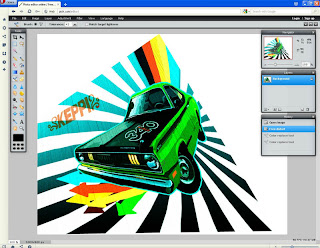
You have option to edit photos from your computer, url or from your accout in pixlr.

Wednesday, August 10, 2011

Aww.. Adobe edge is not for windows XP


Ahh.. I've been waiting for Adobe Edge since I heard about it. I love web designing and trying the new thing (HTML5 and CSS3 ); I was very excited. So, today I got the chance to download the Edge from adobe website. After finishing the download of about 67 MB in a slow connection I quickly tried to open the magic box. I was really excited about it. Then.. a error appeared. Just an error; "oh, doesn't support XP error!, Bullshit.". Ahh! can't tell how my excitement died down for a while. Read more about it and found the edge really didn't work with XP. I can't even get Windows 7 for my dying old computer.
I'm really angry at Adobe. They make so many softwares and can't even make them work with XP (most used OS, I said). Even the ITunes works on XP (Guessed that was irrelevant) how can edge not work on XP.

Anyway for newbies, Adobe Edge might be the replacement for aging Flash and a free replacement (Yeah! its free for now). Edge is a builder for HTML5 and CSS3 websites. You can do the animation much like in the Flash and use it in your website without any additional addons (Anyway your browser needs to support; any latest browser will support HTML5 and CSS3). However you have used Adobe flash then your will be at home with Edge, because the interface is much like Flash.

I just hope (\/,) they get it for XP .

Monday, July 25, 2011

Animation made easy - Go! Animate

http://goanimate.com/
You ever used flash, trying to make up some Animated Sequence. Try Go!Animate, an easy to use flash Animator thats way easy than using Adobe Falsh. It's not just for the one that is struggling with other flash Animators, it is just for everyone.

Using Go!Animate is free and paid facilities are there too. At the first time using Go!Animate you are welcomed with a well detailed tutorial. Finish the tutorial and you start creating your first Animation. You can select from list of characters for your Animation.

The characters vary from robots to aliens, monkies to cats, and so on. You can also make your own character from character creator.

You got the characters right now you can also choose form the environment your characters would do the acts.

Characters and environment are setup now you need is a short story(short is really good for starters; you will know when you make 5 sec of animation, xD).

After you make your Animation video it will be posted for viewing. Sharing is can be really helpful for your future projects because, more 'likes' you get from viewers you can unlock items needed for your animation. Watch other videos and learn from them... until then I am thinking of a story(Hmmm)

Friday, July 1, 2011

Install Android SDK and Run the android Apps

Before, I helped you guys with installing the Android LiveCD. Now here's how you can install Andorid on your PC working side by side with Windows, using Android SDK. Before download look at the System Requirements.
http://developer.android.com/sdk/requirements.html

  1. Go to http://developer.android.com/sdk/index.html.
  2. Java from http://java.sun.com/javase/downloads/index.jsp. If you don't already have it. It is recommended to install newer version of Java(JDE).
  3. you want to develop apps from the SDK then you will also need to download ECLIPSE. But that's the other part. Download it from
    http://www.eclipse.org/downloads/

    The "Eclipse Classic" version is recommended. Otherwise, a Java or RCP version of Eclipse is recommended.
Now Setting up Android Virtual Device (AVD). ADV is your Virtual Phone where you run your Android.
  1. Launch ADV from Eclipse by clicking Window > Android SDK and AVD Manager. You can also start the AVD Manager from the command line by calling the android tool in the tools directory of the Android SDK.
  2. Click New and the ADV creation dialog appears. Enter a size under SD Card. It's not an actual SD card but it stores the IMG file of the Android for storing Data. Eg:512.
  3. Then Click Create AVD.You’re now ready to run Android on your PC! Select your new virtual Android by clicking Start.
Now for Installing Apps on your Virtual Android.
  1. Start your AVD. It may take some time to load. After it loads you can see a browser app. Click on it and goto:https://market.android.com/ You will need to Register or Login through your existing Account. Select Apps you want and Download them.
  2. The Default Apps like email work great. However the call app may(will?) not work. The games you download will work great. I tried Angry Birds and Pac Man.
Enjoy your Android and apps.